
Opening Booking Dates (Schedule Management)
Last updated 2026-08-06
How availability works
All dates start closed. Travelers can only book a product on dates you have explicitly opened. This gives you full control — no surprise bookings on days you're busy.
Open dates from ☰ menu → My Page → Schedule Management (or the calendar shortcut icon in the top bar).
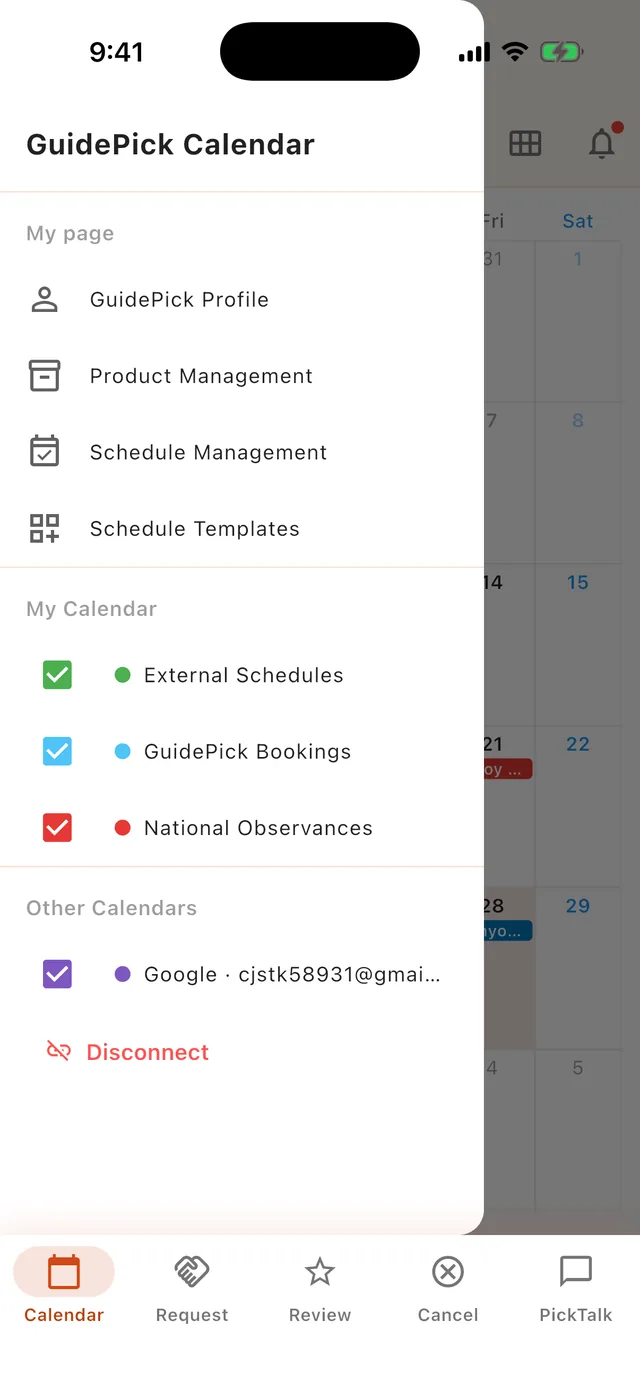 The ☰ menu — My Page section with Schedule Management
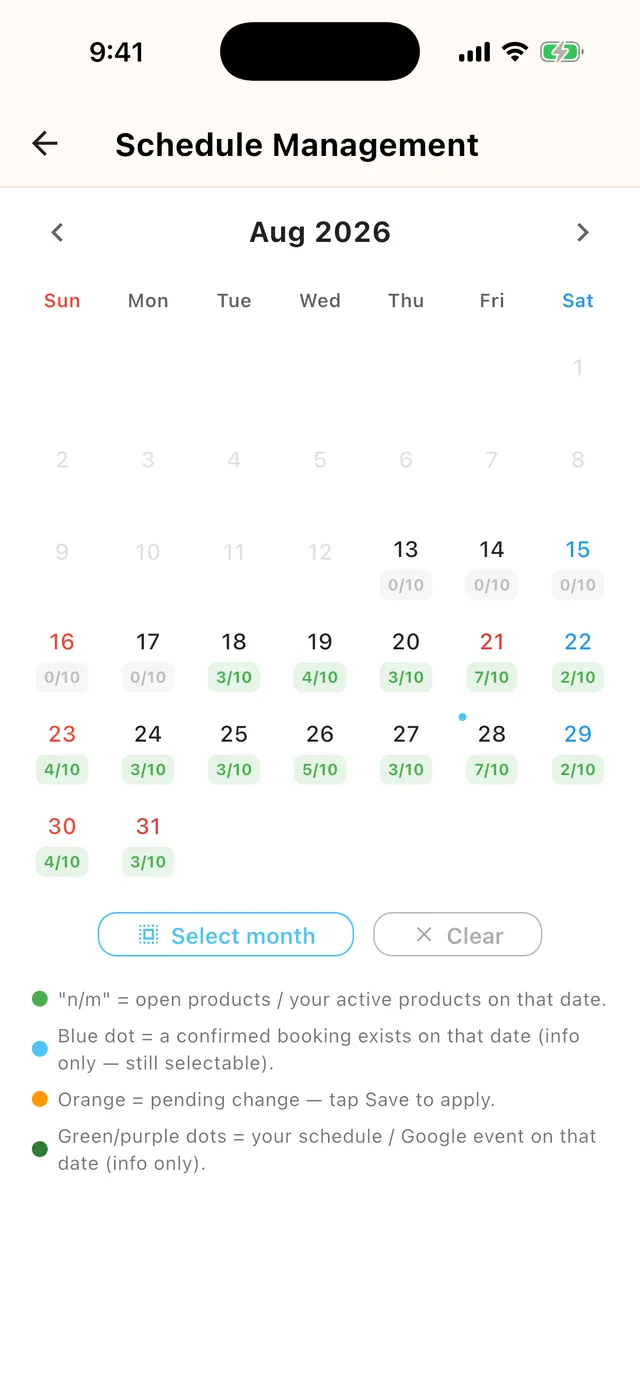 Schedule Management — each cell shows open/total products per day
Opening and closing dates
- Select dates on the calendar — tap individual days, tap a weekday header to select that weekday for the rest of the month, or use select all for the month.
- Use the switch next to each product to open or close it for the selected dates.
- Press Save to apply everything at once.
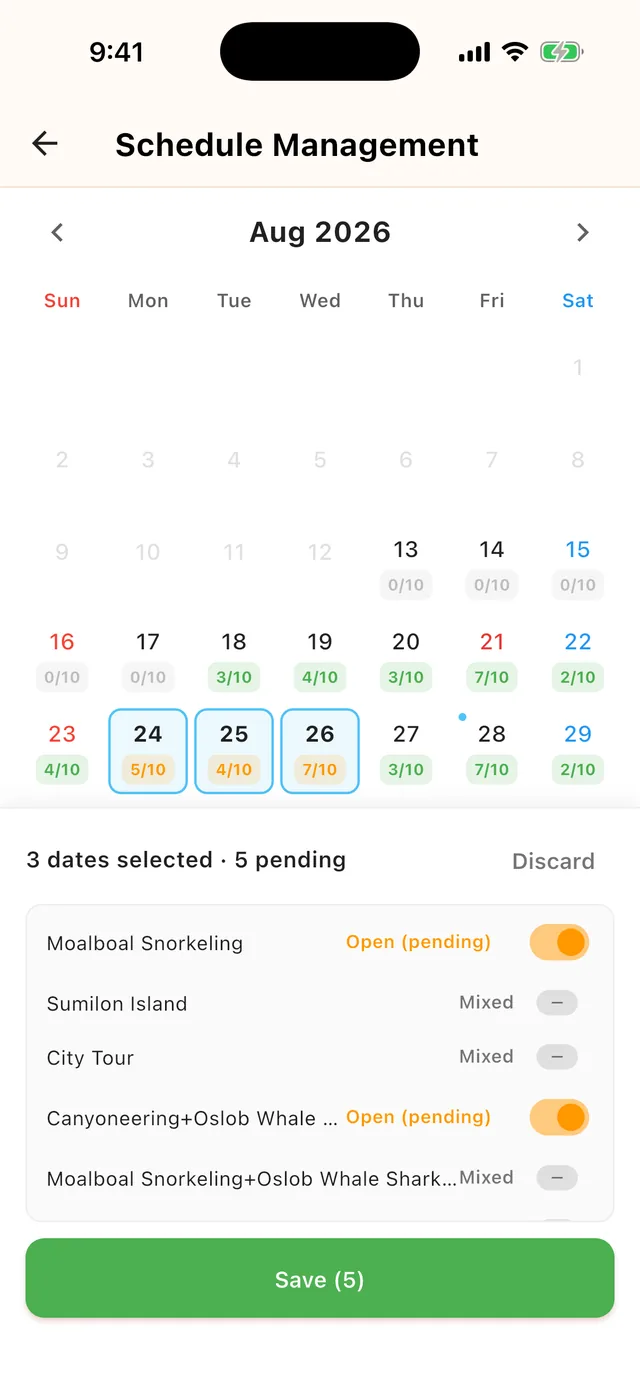 Select dates, flip the product switch, then Save
Tips:
- Each cell shows how many of your products are open that day (e.g., 2/5).
- A "booked" badge means you already have a confirmed tour that day — you can still keep the date open and receive more bookings, or close it if you only take one tour a day. It's your choice; the system never blocks a date automatically.
- Small dots show your external schedules, Google Calendar events, and Philippine holidays so you don't open a busy day by mistake.
Booking window
Travelers can book up to 3 months ahead, so open dates roll forward month by month. When a new month enters the window with no open dates, the home calendar shows a reminder banner — tap it to jump straight to Schedule Management.